Posted on

Using Mask AI

Using Mask AI

Are you ready to start using Mask AI? On this page, learn how to use Mask AI as a standalone program or as a plugin!

Mask AI can handle masking from start to finish, all without having to ever leave the program. Export the transparency, the mask, or your composite image! To use Mask AI as a Standalone editor, download Mask AI from the Topaz Downloads page, then login! You can use it as a standalone editor after purchasing or start a free trial for 30 days!

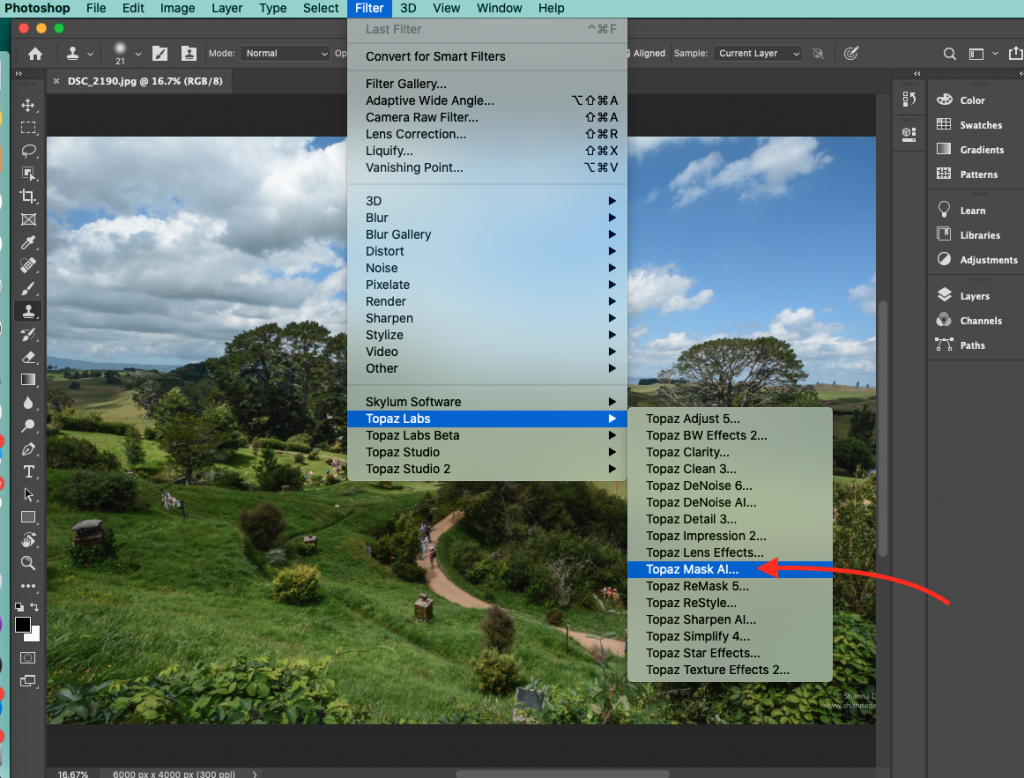
To use Mask AI as a plugin in Photoshop CC, you must first run it as a standalone editor. Mask AI will then be available to use in Photoshop via the Filter menu. Download and install Mask AI, run the program, then restart Photoshop to find Mask AI in the filters list! Should Mask AI not appear in the Filter menu, you may need to exit out of Photoshop and then re-open.

  1. Close and Quit out of Photoshop
  2. Download your installer
  3. Restart your machine
  4. Install the program without any other applications running
  5. Open the program as a standalone first to make sure it’s working for you
  6. Close the program
  7. Open Photoshop and try invoking the plug-in under Filter >> Topaz Labs >> Topaz Mask AI

Topaz Labs Blog

Find written and video tutorials to guide you through creative processes in Topaz software. Start creating a masterpiece today!

Topaz Help Center

Got a question? We’ve got answers. Find troubleshooting, tips, and more, or contact our Support Team.

Posted on

Mask AI Overview

Mask AI Overview

Mask AI allows you to create tricky masks in record time thanks to our intuitive machine learning technology and trimap technique.

What is Mask AI?

Mask AI is an intelligent tool that allows you to create a mask quickly and accurately by using the power of AI technology. Compared to Photoshop, Mask AI doesn’t need tedious brushwork to get a high-quality mask. And there’s no need to learn complicated icons and tools. With Mask AI you only need to roughly outline your subject in blue, one click fills what you want to cut, one click fills what you want to keep, and press “Compute Mask”. It’s really that simple. Our neural network has been trained to distinguish tough edges, so you can get a great mask on the first attempt.

What should I use it for?

You should use Mask AI anytime you need a mask in your workflow especially challenging and detailed masks. It can be a pain to make a good cut-out in Photoshop, and it can take up an entire day’s work. Mask AI’s intuitive color-coded system reduces it to 4 simple steps: keep, cut, compute, and replace.

Is Mask AI a plugin or standalone?

Mask AI functions as a standalone application or as a plugin for Photoshop and Topaz Labs Studio 2

Mask AI includes machine learning for a more accurate mask with less refining required and less user input (an answer to all photographers’ prayers!). We’ve built Mask AI from the ground up to include our latest technology, so you can power up your workflow. Here are a few things we think you’ll enjoy:

1. The Auto-Trimap tools: Our unique Trimap technology provides you with a quick way to let the program know what you’d like to mask. There is a Auto-Detect Subject and Auto-Detect Sky. Auto-Detect Subject will quickly cut away the background, keep the subject and determine what needs to be computed around the subject. Auto-Detect Sky will cut away the sky for easy sky replacement. 

A word of advice: Be sure to check over the auto-trimap before hitting “Compute”. There may be areas the program missed. Also, please be aware the auto-trimap will not detect every subject.

2. Mask, Translucent and Contrast modes:

The AI mode is the ideal mode for more complex masking tasks, like trees, hair, fur, or any image containing a lot of details. 

The Translucent mode is a special AI mode perfect for fabrics and semi-transparent materials such as veils or mesh. Please note this mode is not meant to work on glass objects because of its reflective qualities. 

The Contrast mode it great for simpler subjects with simpler backgrounds, which have little contrast separation between foreground and background. For example, objects with straight lines and buildings. 

3. Manual Trimap Masking:

MASK (Blue) – Region for AI to draw the mask edge. 

KEEP (Green) – Region you define as the foreground. This is preserved. 

CUT (Red) – Region you define as the background. This is removed. 

4. Refining:

The same tools used to create the Trimap will help you refine your mask! The Red cut brush will help you eliminate areas, the Green keep brush will help you brush back in areas you want to retain, and the Blue compute brush will compute a certain area again. When refining, you’ll have the option to uncheck “Auto-update mask with changes”, and make brush strokes without the program computing after each stroke. Once you’re finished making refinement strokes, you can then select “Update Mask.” This is purely a user preference, so you can select what fits your workflow.

5. Color Range Tool:

The Color Range tool can be used to select the color range you want to Keep or Cut from the image. It can be used to construct your mask or as a refining tool. If you use it to construct your mask you use the Keep or Cut brush and paint over the image after picking a color. If you are going to use it as a refinement tool, once you have computed your mask, you select a color and then use the Keep or Cut to refine the edges of the mask. 

Operating System

Windows: Windows 7, 8, 10 (64-bit only

*As of Jan 14, 2020, Microsoft has ended its support for Windows 7.

Mac: macOS version 10.12 (Sierra) and above

We currently do not support Linux-based operating systems.

Graphics Drivers and OpenGL

Your system’s graphic drivers need to be fully up to date, which you can accomplish by following this guide:

Updating your GPU

Our apps also require OpenGL version 3.3 or later.

Hardware Requirements

CPU

  Intel AMD
Minimum Intel i5 or equivalent (3.0GHz and above)  Ryzen 5 or equivalent (3.0GHz and above)
Recommended Intel i7 or greater (4GHz and above)  Ryzen 7 or greater (4GHz and above)
A note on openVINO: Topaz Labs apps support Intel’s openVINO toolset for high-speed CPU-based rendering. If you are currently using an Intel CPU, you can enable openVINO in the Preferences menu of any of our apps.

GPU/Graphics Card

 NvidiaAMD
Minimum2GB of dedicated VRAM (GT 740 or greater)2GB of dedicated VRAM (Radeon 5870 or greater)
Recommended 4GB of dedicated VRAM (GTX 970 or greater)  4GB of dedicated VRAM (Radeon RX 460 or greater)
Optimal 8GB of dedicated VRAM (GTX 1080 or greater) 8GB of dedicated VRAM (Radeon RX 580 or greater)
  • Minimum: Requirements for application to function, users should expect slow performance, large files may cause crashing
  • Recommended: Users should experience no performance issues, though slowness may occur with large files
  • Optimal: Users should not experience any performance issues

-We do not support Intel HD Graphics 4600 or lower.

RAM

Minimum: 8GB

Recommended: 16GB

Optimal: 32GB

Monitor

A monitor that outputs at a resolution of at least 1024 x 768 is recommended.

Where do I purchase Mask AI?

You can find Mask AI on the Topaz website at topazlabs.com/mask-ai. To purchase, head to the Topaz Store.

How Do I start a trial?

First, if you are new to Topaz Labs, create an account on the Topaz Labs My Account Page. Next simply download Mask AI from the Topaz Labs Downloads Page, login using your account information, and select “Start Trial” to begin your free 30-day trial.

Windows

  1. Download from topazlabs.com/downloads
  2. Double-click the download in the bottom left of the screen (Note: You can also find it in your Downloads folder}
  3. Follow the prompts in the installer
  4. Restart your computer (optional, but recommended)
  5. Open the application as a standalone to make sure it is working

Mac

  1. Download from topazlabs.com/downloads
  2. Double-click the download in the bottom left of the screen (Note: You can also find it in your Downloads folder}
  3. Follow the prompts in the installer
  4. Restart your computer (optional, but recommended)
  5. Open the application as a standalone to make sure it is working

Topaz Labs Blog

Find written and video tutorials to guide you through creative processes in Topaz software. Start creating a masterpiece today!

Topaz Help Center

Got a question? We’ve got answers. Find troubleshooting, tips, and more, or contact our Support Team.

Posted on

Fall Sale Begins, All Individual Topaz Products 25% Off

[vc_row][vc_column][vc_column_text]This week here at Topaz Labs we begin our Fall Sale, offering 25% Off Individual Topaz Products*  with coupon code “Fall25“. What does this mean for our Topaz Studio fans? The ability to add to your image editing toolbox at a great discount![/vc_column_text][vc_empty_space height=”15px”][vc_column_text](*does not include the “Complete Collection” or “Pro Pack”, which are already 50% off everyday. Promotion ends 10-30-17)[/vc_column_text][vc_empty_space height=”15px”][vc_column_text]

WAIT…I thought Topaz Studio was FREE?!

[/vc_column_text][vc_column_text]It IS free! Topaz Studio is our free, powerful, and easy to use image editing platform. Intuitive and remarkably full-featured, Topaz Studio is becoming the standalone platform that photography experts and enthusiasts use FIRST, worldwide.[/vc_column_text][vc_empty_space][vc_video link=”https://www.youtube.com/watch?v=JrGHWjLm43s” align=”center”][vc_empty_space][vc_column_text]

Well, then what’s on sale?!

[/vc_column_text][vc_column_text]ALL of topaz Labs’ individual professional plugins and adjustments! These are the powerful and creative tools that run inside Topaz Studio, allowing even MORE creative options to your workflow.[/vc_column_text][vc_empty_space][vc_column_text]

For example…Impression In Studio!

[/vc_column_text][vc_column_text]One of our most popular adjustments, Impression in Studio, allows the user to turn any digital image into a work of art by adding brush strokes, textures, and more. (25% Off, Coupon Code: FALL25)

[/vc_column_text][vc_empty_space][vc_video link=”https://www.youtube.com/watch?time_continue=6&v=Z7weA9GzpCc” align=”center”][vc_empty_space][vc_column_text]

And the completely unique…Detail In Studio!

[/vc_column_text][vc_column_text]Detail in Studio is another unique and powerful add-on to Topaz Studio. (25% Off, Coupon Code: FALL25)

Most image sharpeners apply global sharpening to the entire image, causing undesirable halos or artifacts. Detail in Studio is different. It identifies small, medium and large structures in the image, and allows you to manipulate their sharpness separately, with fewer side effects.

The result? Naturally sharp images other photo editors can’t reproduce, and limitless style options for your image. Complete control and flexibility.

[/vc_column_text][vc_empty_space][vc_video link=”https://www.youtube.com/watch?v=rYztMpDLK1Y” align=”center”][vc_empty_space][vc_column_text]

And for that contrast *POP*…Clarity In Studio!

[/vc_column_text][vc_column_text]Clarity in Studio is all about depth and contrast. (25% Off, Coupon Code: FALL25)

Unless you get perfect images out of your camera without ever touching an editor (we sure can’t!), Clarity in Studio’s microcontrast technology emulates a skilled retoucher’s method of selectively brightening and darkening parts of your image…meaning far better results in far less time.[/vc_column_text][vc_empty_space][vc_video link=”https://www.youtube.com/watch?time_continue=1&v=zQGhPfbZS10″ align=”center”][vc_empty_space][vc_column_text]Hope you enjoy filling your image toolbox this week, at a discount![/vc_column_text][/vc_column][vc_column][/vc_column][vc_column][/vc_column][/vc_row][vc_row][vc_column][vc_empty_space][vc_column_text]

Thanks for Reading!

[/vc_column_text][vc_column_text]That’s all we have for today! If you’ve been inspired, feel free to comment on this post or share your own thoughts with us on one of our social media channels you can reach us on Instagram with @topazlabs and Twitter with @topazlabs. We’re also on Facebook and YouTube![/vc_column_text][/vc_column][/vc_row][vc_row][vc_column][vc_empty_space][vc_column_text]

Free Download

[/vc_column_text][vc_column_text]Feel free to download our brand new product, Topaz Studio, the all-in-one photo editor. It works as a plugin, a host editor for your Topaz products, and a standalone editor. Best of all it’s completely free to use![/vc_column_text][vc_empty_space height=”15px”][vc_row_inner][vc_column_inner width=”1/2″][vc_btn title=”Windows” shape=”square” color=”primary” align=”center” button_block=”true” link=”url:https%3A%2F%2Fopen_beta.s3.amazonaws.com%2Ftopazstudio_online_installer.exe|||”][/vc_column_inner][vc_column_inner width=”1/2″][vc_btn title=”Mac” shape=”square” color=”primary” align=”center” button_block=”true” link=”url:https%3A%2F%2Fopen_beta.s3.amazonaws.com%2Ftopazstudio_online_installer.dmg|||”][/vc_column_inner][/vc_row_inner][/vc_column][/vc_row]